
Table of Contents:
- How to Choose A Perfect Domain Name for your website
- How to pick a right hosting plan for your website
- How to install wordpress on your server
- Introduction to WordPress Dashboard
- Install the relevant theme for your website
- Install the essential plugins to extend your website’s abilities
- Create basic pages every website needs
- Create blog posts
- Improve Your Site’s Navigation
How to Choose A Perfect Domain Name for your website
When we create a website, we must first consider the name of the website. The easier it is for someone to remember the name of our site, the more likely they are to return to our site.
However, the Google search engine doesn’t care about your website name for search engine optimization so you can use any website name to create your website, it depends on your decision but when you purchase a domain you have to consider the domain provider’s support and their quality. We will recommend you Namecheap and Dynadot this company will provide great and fast customer support and also we will change the server they will upload DNS within 1 or 2 hours so these name service providers are best to buy a website name for your website.
How to pick a right hosting plan for your website
Your site speed, security, SSL certificate, and so many features quality depend on your hosting server. Before you purchased a hosting server you must consider server features. As an example, your server must provide an SSL certificate with your server for all domains. However, We will recommend SiteGround, Bluehost, and Hostgator.
How To Install WordPress On Your Server
You have two options for installing WordPress on your server: quick installation and manual installation. furthermore, all hosting providers provide these two options therefore you can use any option to install WordPress on your server.
Quick Installation:
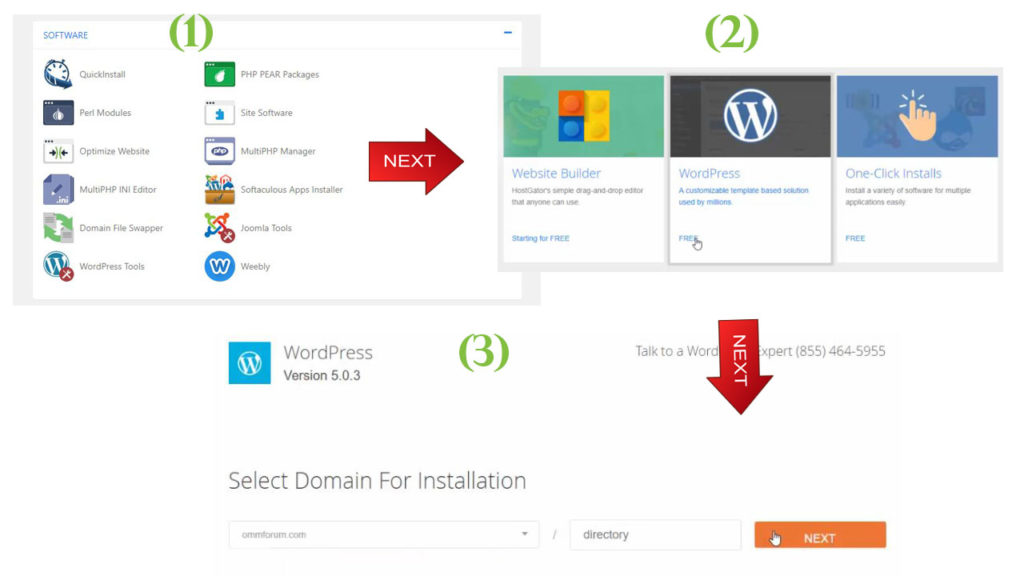
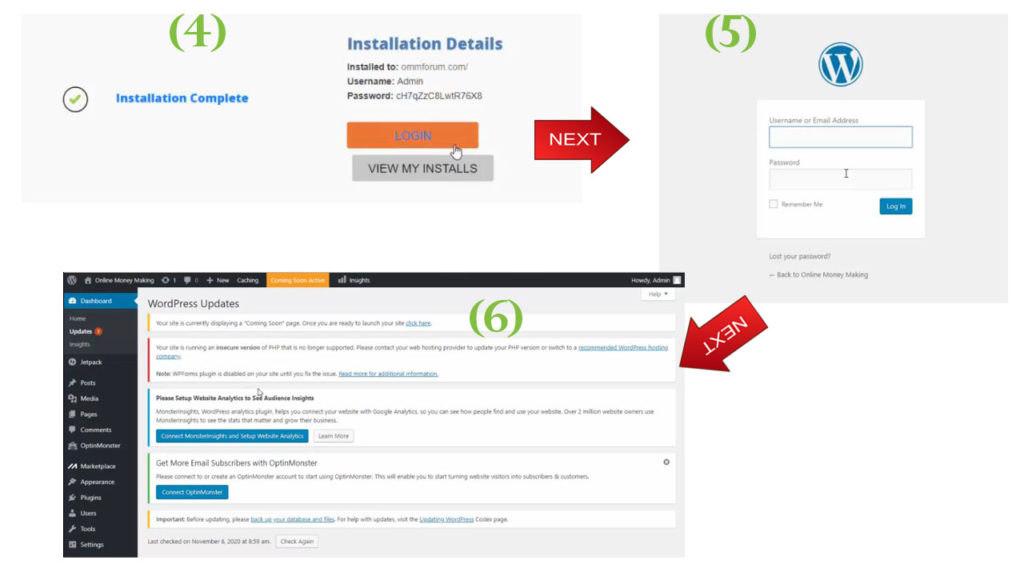
Click on the quick install icon on your server, then fill out the text box (site title user name and email address), and click on the install button. that is enough (Your login password will be auto-generated by WordPress), now you have installed WordPress on your server.
Manual Installation:
If you have normal knowledge about WordPress you can use the manual installation to install WordPress on your server but keep in mind both installations are the same
Introduction To WordPress Dashboard
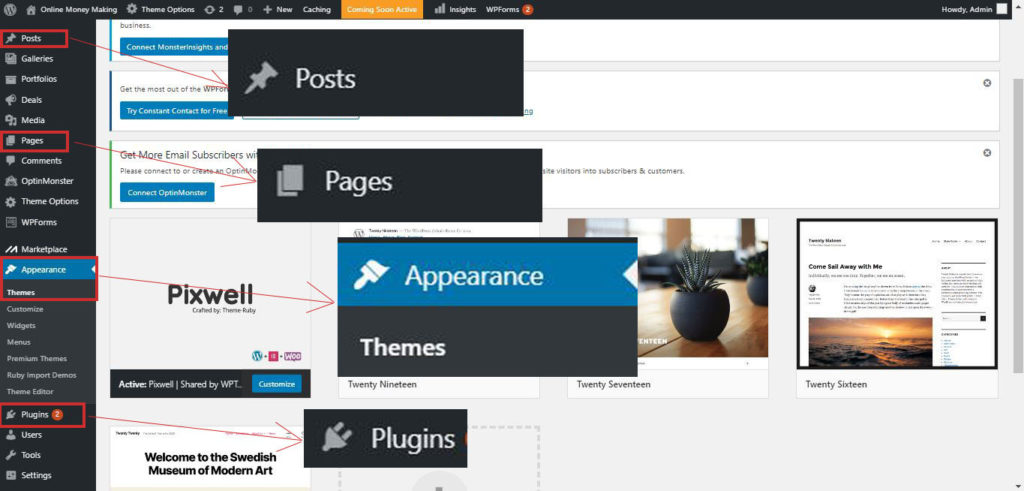
You can see so many features on the WordPress dashboard but if you are a newcomer to WordPress you must know about the theme, plugins, pages, and post. that is enough to create a WordPress website
Install the relevant theme for your website
When you will select the theme you should consider theme relevance. WordPress also provides so many free themes for any categories but they ware limited some features on free themes. If you are beginners you can use a free theme that doesn’t care about it, but you are going to create a professional website you should purchase the right theme as an example Pixwell Theme. Pixwell Theme can be used for more than 22 categories with different unique looks.
Install the essential plugins to extend your website’s abilities
Yoast SEO and UpdraftPlus plugin needs for every newcomer. If you use a paid theme other plugins will install automatically. Yoast SEO is one of the best SEO tools for WordPress. UpdraftPlus can backup your site automatically and also UpdraftPlus is one of the best backup plugins for wordpress
Create basic pages every website needs
Home, About Us, Contact Us, Privacy Policy, and Terms & Conditions pages need for every website so you can create these pages using the pages section on the WordPress dashboard
Create blog posts
All other pages (without basic pages) can create using the post section in the WordPress dashboard, therefore you have to learn more about the post section
Improve Your Site’s Navigation
Divide categories clearly and Make all navigation elements clickable links then you can Improve Your Site’s Navigation